Settings do not save or revert after refresh
Work out which layer is dropping your RankReady settings, from form limits to security rules to caching, and confirm the fix properly.
Last updated October 1, 2026
By the end of this page your RankReady settings will persist across a refresh, or you will know precisely which layer is discarding them. Work through the steps in order, because the cheap checks rule out the common causes fastest.
What you are seeing
You change a setting, click Save, and the page reloads showing the previous value. Or the change appears to hold in the admin screen, but the front end and the endpoints behave as if nothing changed. Those are two different problems and it is worth deciding which one you have before you start.
Which problem do you have
Reload the settings screen in a private browser window. If the setting is back to its old value there too, the save genuinely failed: continue with the steps below. If the setting shows the new value in the private window but the site behaves as before, the save worked and the problem is stale rewrite rules or caching: jump to step 5.
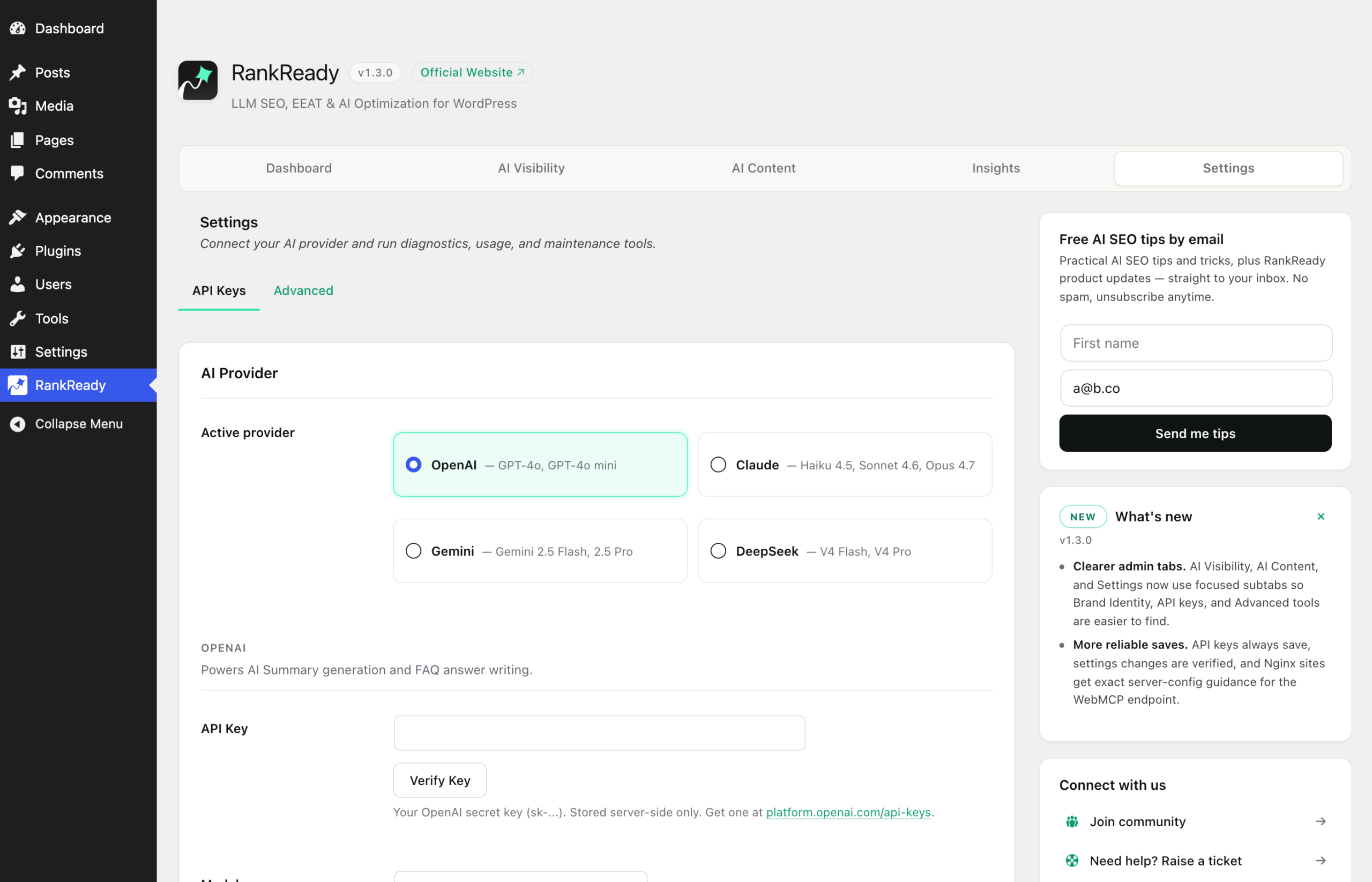
1. Save one tab at a time
RankReady’s settings are split across five tabs: Dashboard, AI Visibility, AI Content, Insights and Settings, with subtabs under AI Visibility and AI Content. Change one setting on one screen, save, and confirm that single change held before making more.
This is not a workaround, it is diagnosis. If one tab saves and another does not, you have narrowed the problem to a specific screen, which is far more useful than “settings do not save”.
2. Confirm you have permission and a valid session
You need administrator access to save plugin options. Also check for an expired login: if you left the page open for a long time before clicking Save, WordPress may have rejected the submission as stale. Reload the page, log in again if prompted, make the change and save immediately.
3. Rule out the browser
Retry in a different browser, or in the same browser with extensions disabled. Password managers and form-filling extensions can rewrite fields after you have typed in them, so what you submit is not what you saw on screen. This shows up most often on fields that look like credentials.
4. Rule out something blocking the request
If the form posts and nothing persists, something between your browser and PHP may be dropping or truncating the submission. Check these in order:
- Security plugin or web application firewall. Temporarily disable it and retry. Firewall rules sometimes reject POST bodies containing long token-like strings or unusual characters. If that is the cause, add a targeted exception and switch protection back on. Do not leave it off.
- PHP input limits. Large settings forms submit a lot of fields. If your server’s
max_input_varsis low, PHP silently discards the fields beyond the limit, which looks exactly like “some settings save and others do not”. Ask your host to raise it if you suspect this. - Server error logs. A PHP error during the save request will abort it. Check your error log for entries timestamped at the moment you clicked Save. Match the timestamp before blaming any entry you find, because old unrelated errors are always sitting in that file.
5. Distinguish a failed save from a stale rewrite rule
Endpoint related settings have a second failure mode. The option can save correctly while the URL keeps behaving as it did before, because WordPress is still using its previously generated rewrite rules.
The fix is to go to Settings > Permalinks and click Save Changes. You do not need to change anything. This rebuilds the rules and picks up what RankReady registered.
RankReady also clears stale rules when you turn a feature off, which earlier versions did not always do, and RankReady recognises its endpoints from the raw request path when a rewrite rule has been intercepted by another part of the stack. If you are on an older release, update first.
6. Clear caches, then test the outcome not the toggle
Purge your page cache plugin, then purge your CDN separately, then retest logged out in a private window. A cached 404 or a cached old page will convincingly imitate a setting that did not save.
Then confirm the actual behaviour rather than the checkbox:
curl -I https://example.com/llms.txt
curl     https://example.com/robots.txt
For robots rules, check the managed section between # BEGIN RankReady and # END RankReady. Anything outside those markers is not RankReady’s output and will not change when you save RankReady settings.
7. Bisect for a conflict
If the settings still will not hold, switch to a default WordPress theme and retest. Then deactivate other plugins in small groups, retesting after each group, until saving works. Reactivate one at a time to identify the culprit.
Do this on a staging copy if you have one. If you do not, do it at a quiet time and take a database backup first.
Two things that are not save failures
Before you spend more time on this, rule out two behaviours that are working as designed:
- Article schema producing nothing. Article schema is built from the post’s generated AI summary and emits nothing when there is no summary on that post. The schema setting saved fine.
- A feature you cannot find. Auto-generate on publish, bulk regenerate, HowTo and ItemList schema and custom post type support are RankReady Pro features rather than missing ones. The AI mention tracker, per-language llms.txt and multi-site management are genuinely not shipping yet.
What to gather if you need help
Note the exact tab and subtab, the setting name, what you set it to, what it reverted to, whether other settings on other tabs save correctly, and your WordPress version, PHP version and web server. RankReady lists its minimum WordPress and PHP versions on the RankReady page on WordPress.org.