How to add llms.txt to WordPress
Publish a working /llms.txt index on your WordPress site with RankReady, then confirm it is live with one request.
Last updated September 27, 2026
By the end of this page your site will serve a working /llms.txt file, and you will be able to prove it is live rather than assume it.
What llms.txt actually is
llms.txt is a plain text file at the root of your domain. It is an index. It opens with the name of the site and a short description of what the site is about, then lists links with one line of context each. The formatting is Markdown, so it stays readable to a person and cheap to parse for a machine.
It exists because an HTML page carries a lot that a language model does not need: navigation, cookie notices, related post grids, inline scripts, tracking tags. A text index strips that layer away and points at the content directly.
Be clear about what it does not do
A file being present does not mean anything reads it. llms.txt is a proposed convention, not an enforced protocol. Some clients fetch it, some ignore it, and support changes without anyone announcing it. Publishing the file makes your content available in a clean form at a predictable address. That is the entire claim, and you should treat anything stronger with suspicion.
The same caution applies to your logs later on. A crawler hit proves your page was fetched. It does not prove it was read, stored or quoted anywhere.
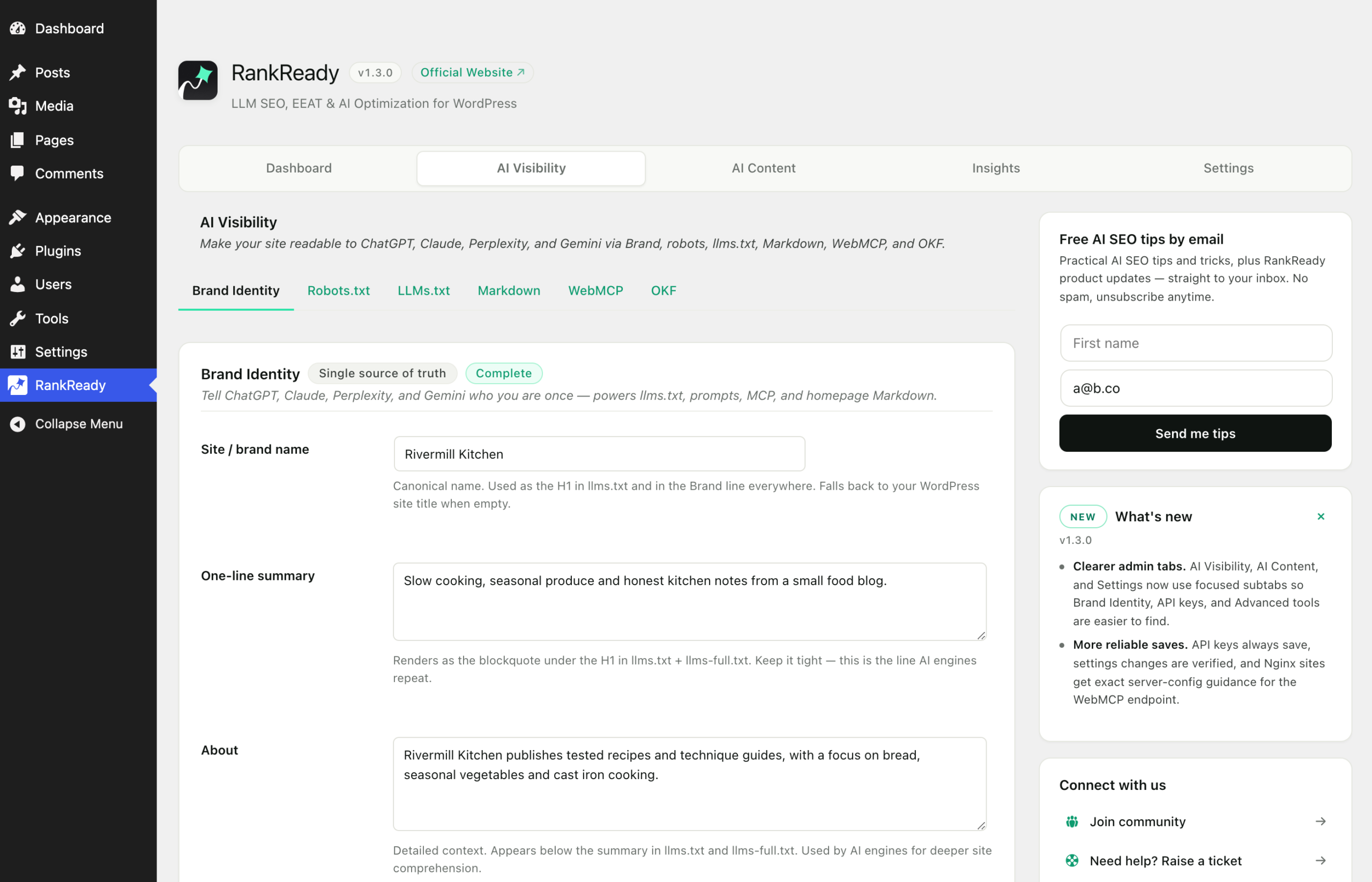
Step 1: fill in Brand Identity first
The header of your llms.txt is built from your brand details, so set those before you turn anything on.
- In wp-admin, open RankReady.
- Go to the AI Visibility tab. The address ends in
tab=crawlers. - Open the Brand Identity subtab,
sub=brand. - Fill in your site name, a one line summary of what the site does, and a longer about paragraph.
- Save.
Write the summary the way you would explain the site to a stranger in one sentence. It is the first thing in the file, and it is the line most likely to be read in full.
Step 2: turn on llms.txt
- Stay in the AI Visibility tab.
- Open the llms.txt subtab,
sub=llms. - Switch the feature on.
- Save the settings.
No API key is needed. llms.txt is generated from content that is already in your database, so there is no AI provider involved and no per request cost. The AI provider keys in RankReady are only used by AI Summaries and the FAQ Generator.

Step 3: verify it worked
Open https://your-site.com/llms.txt in a browser. You should see plain text, not a 404 page and not your theme. For a stricter check, use curl and look at the headers:
curl -sI https://your-site.com/llms.txtA correct response looks like this:
HTTP/2 200- A
Content-Typeoftext/plain - An
ETagheader
The ETag matters. RankReady supports conditional requests on /llms.txt, so a client that already has a copy can ask whether anything changed instead of downloading the file again. Take the ETag value from the first response and send it back:
curl -sI -H 'If-None-Match: "PASTE_THE_ETAG_HERE"' https://your-site.com/llms.txtIf nothing has changed since that ETag was issued, you get HTTP/2 304 and an empty body. That is the correct answer, not a failure.
Then read the body itself:
curl -s https://your-site.com/llms.txt | head -30You should see your site name, your summary, then the link list. If the summary is missing or generic, go back to Brand Identity and fill it in properly.
If you get a 404
A 404 almost always means WordPress rewrite rules are stale or something else claimed the route first. Work through this in order:
- Go to Settings, Permalinks and click Save Changes. You do not need to alter anything. Saving rebuilds the rewrite rules.
- Reload
/llms.txt. - If you run LiteSpeed alongside Rank Math, clear your page cache as well. That combination has been known to intercept the route. RankReady added a raw request path fallback for exactly this case.
If the file loads but shows an old version, clear any full page cache or CDN cache in front of the site and try again.
Where this fits with your SEO plugin
RankReady sits alongside Yoast, Rank Math, AIOSEO, SEOPress, The SEO Framework and Slim SEO. It does not replace them. It has no title editor, no meta description editor and no XML sitemap, so nothing here competes with the plugin you already use for search. Your sitemap keeps doing its job for search engines. llms.txt is a separate, simpler index aimed at clients that want plain text.
What to do next
If your site is small enough to fit in one file, look at /llms-full.txt, which serves the whole corpus in a single document rather than a list of links. If you want individual posts available as clean Markdown, turn on the Markdown endpoints so every post also answers at /{post-slug}.md.