API key will not save in WordPress
Fix an AI provider key that disappears or refuses to save, and confirm whether it really saved by testing generation.
Last updated August 25, 2026
By the end of this page your AI provider key will either be saving correctly, or you will know exactly which layer is blocking it. RankReady supports OpenAI, Anthropic Claude, Google Gemini and DeepSeek, and you supply your own key.
What you are seeing
You paste a key into RankReady > Settings, click Save, and one of these happens: the field is empty when the page reloads, the old value comes back, or generation still reports that no key is available.
Why it happens
There are four distinct causes, and they need different fixes:
- The key never reached the database, because something between your browser and PHP rejected the request.
- The key saved, but against a provider you are not using, so the feature that needs it still finds nothing.
- The key saved, but the value itself is wrong: extra whitespace, a truncated paste, or a key that has been revoked at the provider.
- The key saved and works, but you are reading a cached copy of the settings screen.
RankReady stores keys in your own site’s wp_options table, encrypted at rest. They stay on your server. That is worth knowing when you are deciding what a blank looking field actually means.
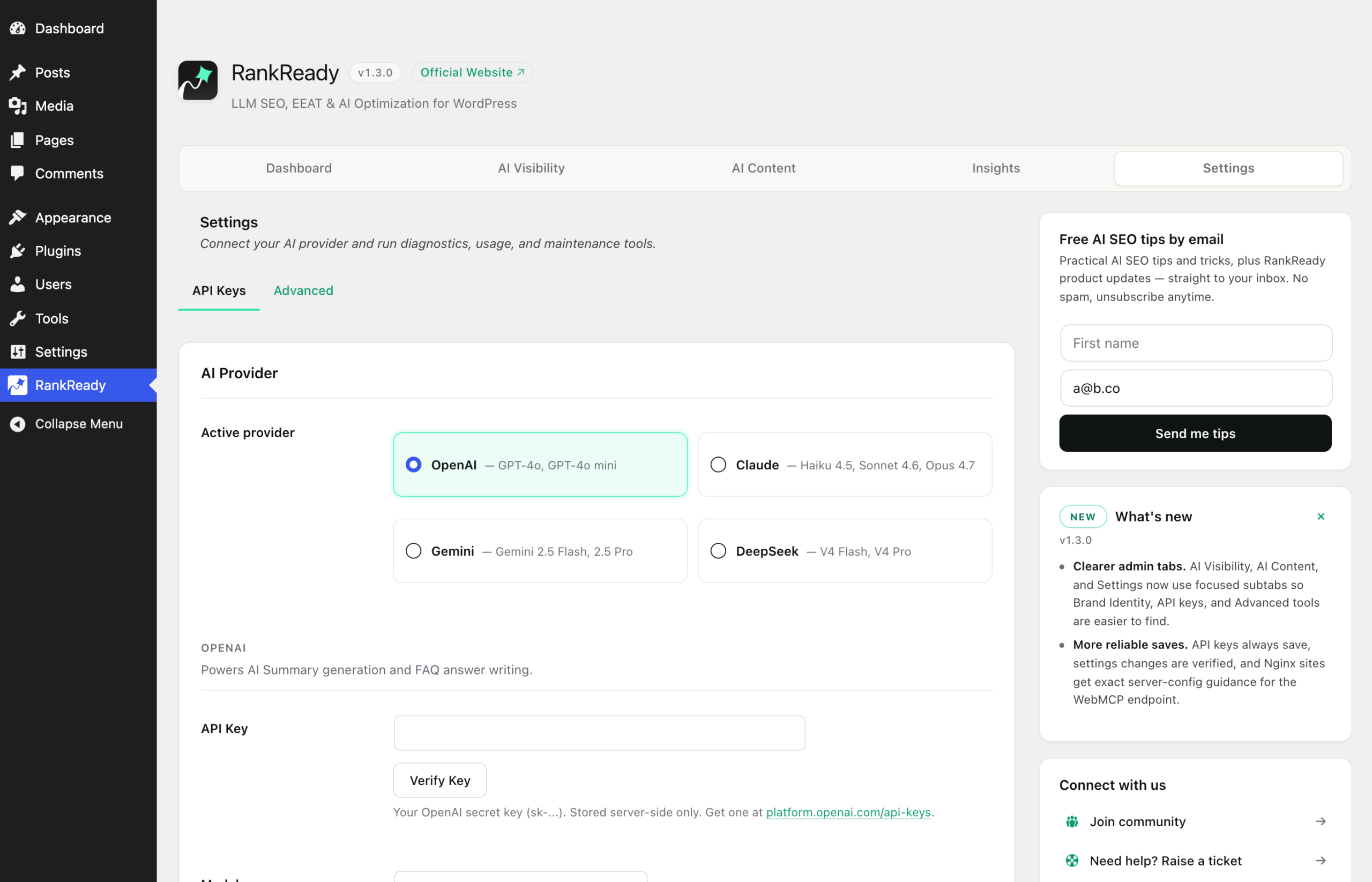
1. Match the key to the selected provider
Open RankReady > Settings (tab=settings). Confirm the provider you have selected is the same one the key belongs to. An OpenAI key saved while Gemini is selected will save perfectly well and still leave generation without a usable key. This is the most common version of “it will not save” that turns out not to be a save problem at all.
2. Re-paste the key cleanly
Clear the field completely, then paste the key fresh from the provider dashboard. Watch for three things:
- Leading or trailing whitespace, which is easy to pick up when copying from an email or chat window.
- A truncated paste. Provider keys are long, and a partially selected copy looks plausible.
- Smart quotes or line breaks introduced by copying out of a document rather than a plain text field.
Copy from the provider’s own dashboard where possible, not from somewhere the key has been pasted before.
3. Confirm the request is reaching WordPress
If the form posts and the value is simply gone, something is dropping the request. Test in this order:
- Save a different, harmless setting on the same screen. If that also fails to stick, the problem is the settings form as a whole, not the key field.
- Try a different browser, or the same browser with extensions disabled. Password managers and autofill extensions can overwrite a field after you type in it.
- Temporarily disable a security plugin or web application firewall and retry. Firewall rules sometimes block POST requests that contain long token-like strings, which is exactly what an API key looks like.
- Confirm you are logged in as an administrator. A user without the capability to manage options cannot save plugin settings.
If disabling a firewall fixes it, do not leave it off. Add an exception for the RankReady settings page and switch protection back on.
4. Clear caches and reload
Admin pages are not usually cached, but object caching and aggressive optimisation plugins can serve stale values. Purge your caches, log out and back in, then reload the Settings tab and check the field again.
5. Prove it by generating something
The reliable test is not what the field looks like, it is whether generation works. Go to RankReady > AI Content, open the Summary subtab (tab=content&sub=summary), and generate a summary on a single post.
- Summary generates: the key is saved and valid. You are done.
- Generation reports an authentication or permission failure from the provider: the key saved, but the provider rejected it. Check the key is active, not revoked, and that the account has credit or quota available.
- Generation reports no key configured: the value genuinely is not stored. Go back to step 3.
What still works without a key
Before you spend more time on this, check whether you actually need the key for what you are trying to do. A provider key is required for two features only: AI Summaries and the FAQ Generator.
Everything else runs with no key at all: /llms.txt and /llms-full.txt, the Markdown endpoints, the 29 named AI crawler controls, Article schema, the Author Box, AI referral tracking, the freshness scanner and the WebMCP manifest.
DataForSEO is separate and optional. It is used only by the FAQ Generator, to find real People Also Ask questions, and it receives your focus keyword only, never your article text. If FAQ generation is your goal, treat the DataForSEO credentials as a second, independent thing to verify.
Costs and limits
Generation in RankReady is unlimited, with no monthly caps imposed by the plugin. What you pay is your own provider usage, billed by OpenAI, Anthropic, Google or DeepSeek directly. If generation fails with a billing or quota message, that is between you and the provider, and no plugin setting will change it.
If the settings screen is the real problem
If step 3 showed that other settings also fail to save, the key is a symptom rather than the cause. Work through the dedicated guide on settings that do not save or revert after a refresh, then come back and re-enter the key.