
WordPress Application Passwords, explained
What WordPress Application Passwords are, why they beat sharing your password, how to create and revoke one, and how Hatch uses a Subscriber account.
Last updated October 28, 2026
Application Passwords let an app or service sign in to the WordPress REST API without using your main password. Hatch Connect’s frontend uses one to read your content. This article explains how they work and how to create, use and revoke one safely.
What an Application Password is
An Application Password is a separate password attached to a WordPress user, created under Users, Profile. It works for API requests such as the REST API, not for logging in to wp-admin. Each one has a name, so you can tell which app uses it, and you can revoke one without affecting others or your main password. The feature has been part of WordPress core since version 5.6. See the REST API authentication docs.
Why they are safer than sharing your password
- Your main password is never given to the app.
- Each app gets its own password, so you can revoke one without breaking the rest.
- The password has the same permissions as its user, so attaching it to a low-privilege user limits what it can do.
Requirements
WordPress normally offers Application Passwords only on sites served over https (local development environments are an exception). Some security plugins or hosts turn the feature off; if you do not see the section in your profile, check those first.
How Hatch uses an Application Password
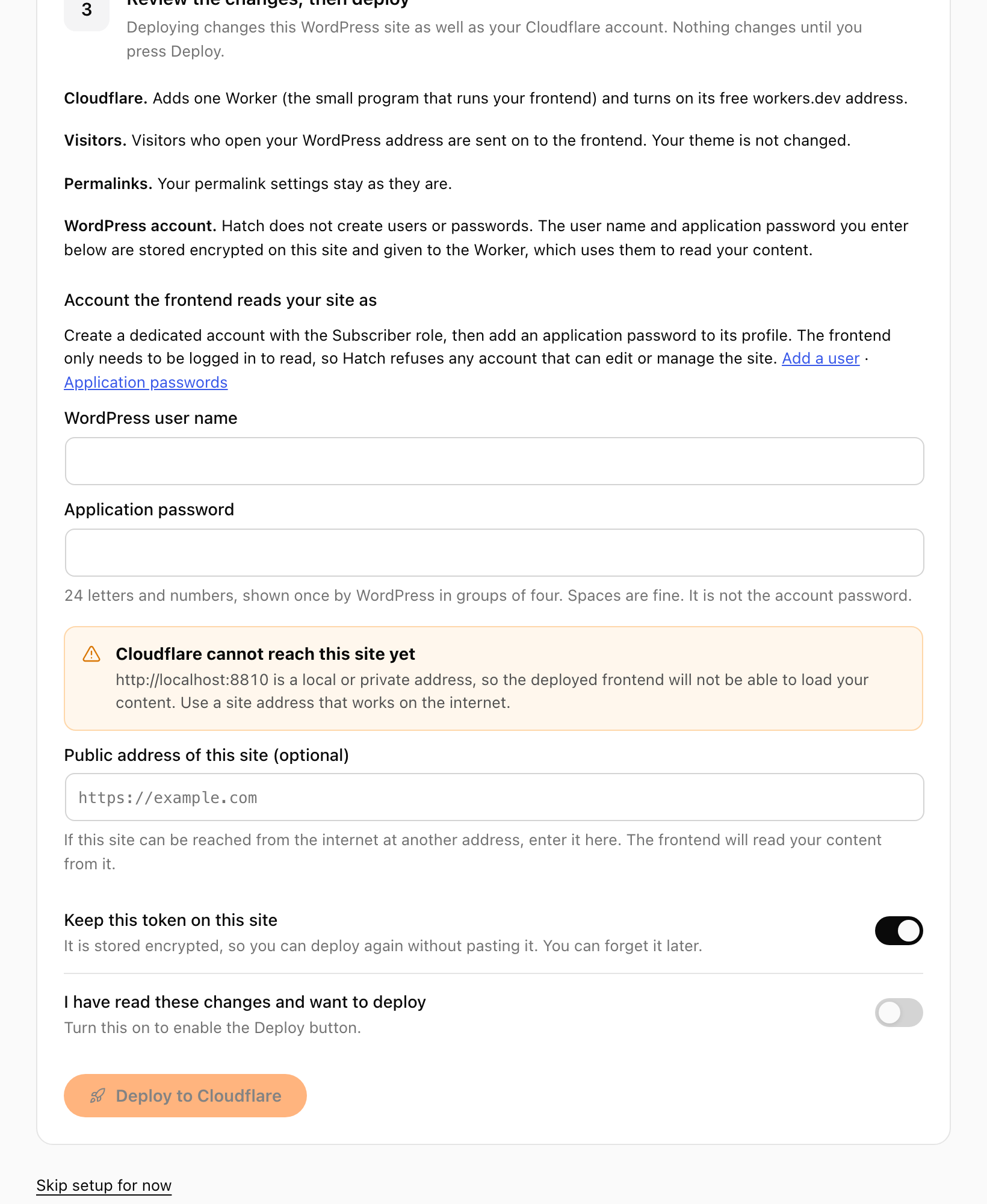
The Hatch deploy never creates users or Application Passwords. Before a deploy you create a user with the Subscriber role and an Application Password for it, with WordPress’s own screens, and enter the user name and password in the setup guide. Hatch refuses any account that can edit other people’s posts or manage users, plugins or the site, both when you enter it and every time it signs in. The frontend uses that account only to read.
The password is stored encrypted on your site so a redeploy does not ask again, and it is given to your Worker as an encrypted secret. Hatch never shows it again.
Step by step
Step 1: create a Subscriber user
Go to Users, Add New, and create a user with the Subscriber role for the frontend.
Step 2: create the Application Password
Edit that user, scroll to Application Passwords, enter a name such as “Hatch frontend” and create it. Copy it right away: WordPress shows it only once.
Step 3: enter it in Hatch
Paste the user name and Application Password into the setup guide before you deploy.
Revoking it
Open the user’s profile and revoke the password under Application Passwords. Disconnect in Hatch (Hatch, Connection) forgets the stored copy, but does not revoke it in WordPress; do that yourself afterwards.
FAQ
Can an Application Password log in to wp-admin?
No. It is meant for API requests, not the normal login form.
Why does Hatch refuse my admin account?
The frontend only needs to read. Hatch refuses accounts that can edit other people’s posts or manage users, plugins or the site, to limit damage if the secret leaks.
I do not see Application Passwords in my profile.
Check that the site uses https and that no security plugin or host setting has turned the feature off.