
Site Shows Old Content After Publishing
Hatch frontend still shows old content after you publish? Check the refresh signal, the post type, the webhook secret and WP-Cron, then refresh by hand.
Last updated October 29, 2026
By the end of this guide your frontend will show your latest content again, and you will know which part of the refresh chain was broken.
Why this happens
When you publish, Hatch sends a refresh signal to the frontend. If the signal is not sent, or the frontend cannot accept it, visitors keep seeing the cached version.
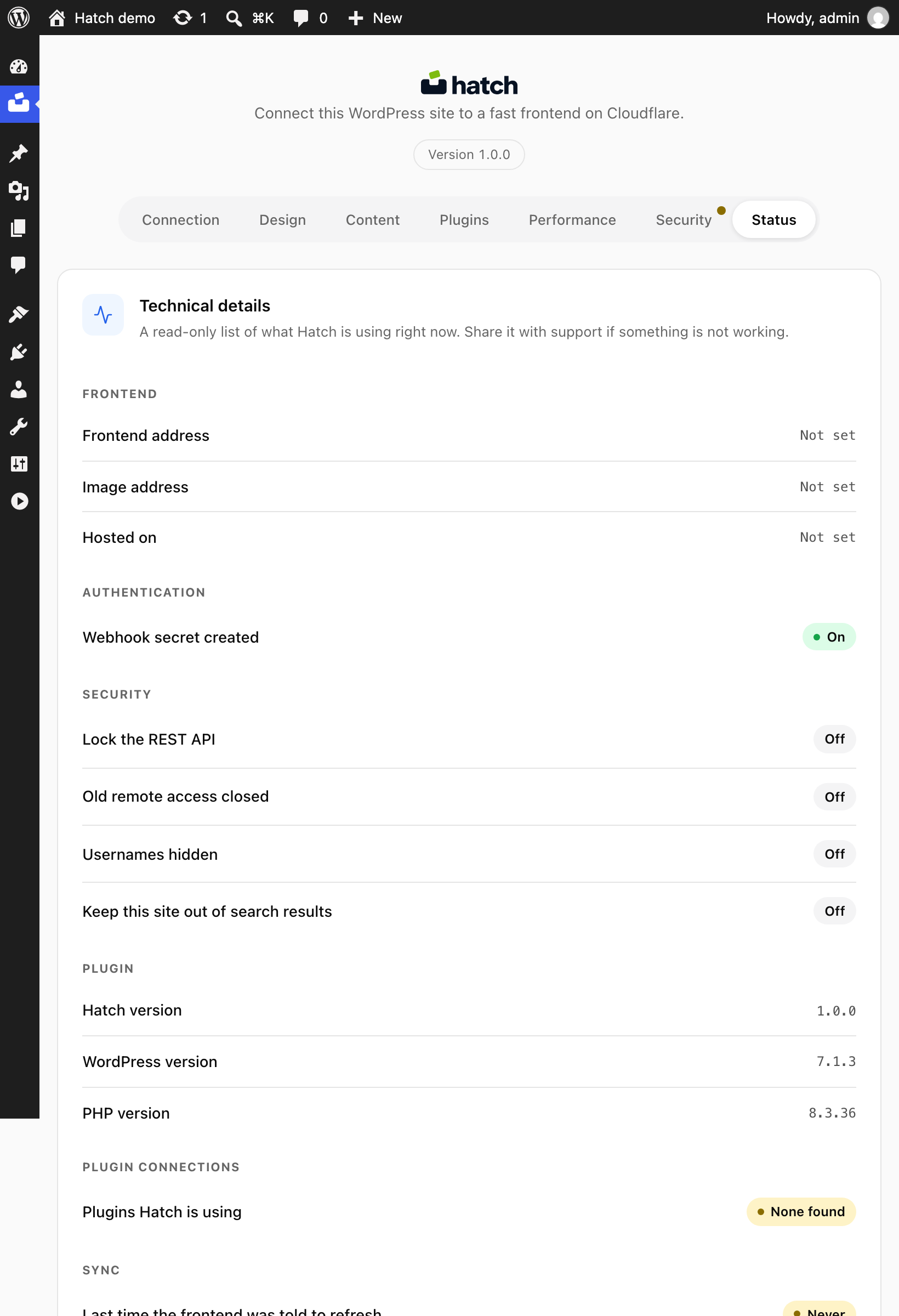
Step 1: check the Status tab
- Open Hatch, Status.
- Look at Last time the frontend was told to refresh. If it says Never or an old time, the signal is not being sent.
- Check that Webhook secret created is shown. Hatch sends nothing without both an endpoint and a secret; deploying sets both.
Step 2: check what you changed
- Only posts and pages trigger a refresh by default. Other post types need the
hatch_revalidate_post_typesfilter. - Drafts, autosaves and revisions never trigger a refresh. The post must be published.
- Make sure Refresh the frontend when you publish is switched on.
Step 3: refresh by hand
wp hatch revalidateOr use Test connection in the admin. Then reload the frontend.
Step 4: redeploy
Design and frontend changes need a new build. Deploy again from the Connection tab.
Step 5: check scheduled tasks
If the Status tab warns that WP-Cron is off, a server cron must run it, or scheduled Hatch checks will not happen.
Local or firewalled sites
The frontend runs on Cloudflare and must reach your site over HTTPS. Use a public address or a tunnel.