
Which WordPress blocks Hatch supports
See which Gutenberg blocks Hatch Connect styles on your Astro frontend, how dynamic blocks render, and how to limit the editor to supported blocks.
Last updated October 30, 2026
By the end of this guide you will know which WordPress block editor (Gutenberg) blocks Hatch Connect styles on your Astro frontend, how Hatch turns your posts into HTML the frontend can show, and how to stop writers from adding blocks the frontend does not style.
How Hatch renders your blocks
Hatch is a bridge. You write with WordPress core blocks, and the frontend receives styled HTML. You never write render code. The frontend loads one shared stylesheet, core-blocks.css, which holds base rules for every .wp-block-* selector inside the article body. Each design (Editorial, Terminal, Docs) then adds its own look on top of that shared layer.
When a post is sent to the frontend, Hatch parses its blocks into a tree with a name, attributes, inner blocks and the saved HTML of each block. Most blocks are static, so the HTML WordPress saved is used as it is. A short list of dynamic blocks is rendered by WordPress first, so they arrive on the frontend as ready HTML. That list is:
- Latest Posts, Latest Comments, Query and Post Template
- Shortcode, Calendar, Categories, Tag Cloud, RSS, Search and Archives
- Embed, plus any block whose name starts with
core/embedorcore-embed/
Developers can add more names to this list with the hatch_dynamic_block_names filter.
Blocks Hatch styles end to end
These core blocks have explicit CSS in the shared layer that every Hatch design inherits:
- Text: Paragraph, Heading, List, Quote, Pullquote, Code, Preformatted, Verse
- Media: Image, Gallery, Video, Audio, Cover, Embed, File
- Layout: Columns, Column, Group, Separator, Spacer, Table, Details
- Buttons: Button and Buttons
- Post lists: Post Template, Post Title, Post Excerpt, Post Date, Post Featured Image, Post Author, Post Content
- Widgets: Latest Posts, Categories, Tag Cloud, RSS, Search
Wide and full-width alignment (.alignwide, .alignfull) and centred alignment are handled by the shared stylesheet, so landing-page layouts built with Cover, Group and Columns keep their width.
Limit the editor to supported blocks
Hatch can narrow the block inserter to the list above, so nobody adds a block the frontend does not style. The option is off by default.
- In wp-admin, open Hatch and go to the Plugins tab (Plugin Bridge).
- Switch on the toggle that hides unsupported blocks.
- Save, then open the block editor. The inserter now only offers supported blocks.
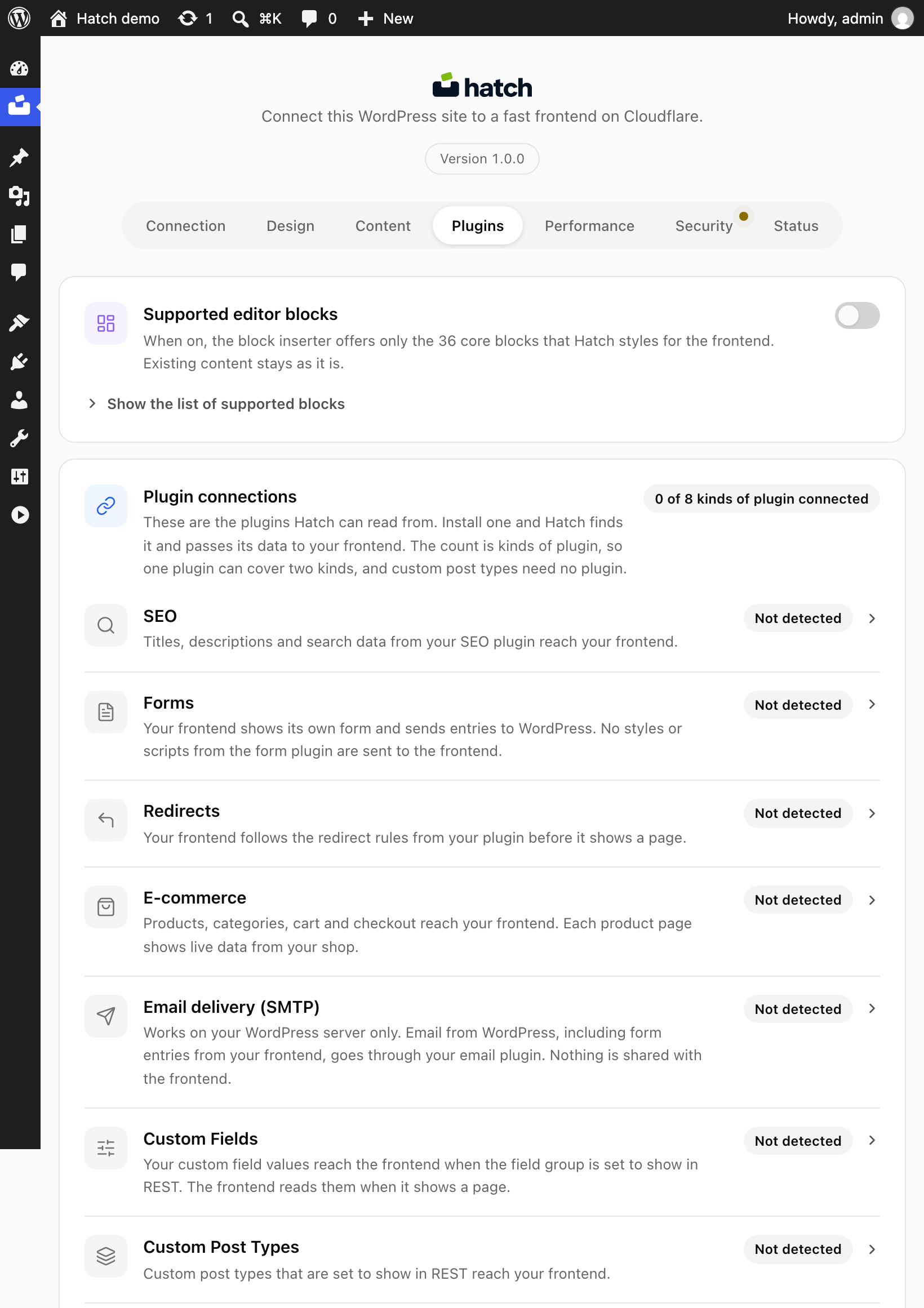
This only changes what the inserter offers for new blocks. Posts that already use an unsupported block are not edited and render unchanged.
Custom and third-party blocks
The Hatch theme guide is clear that custom Gutenberg blocks are not supported for themes: WordPress core blocks go in, styled HTML comes out. If a plugin block saves plain HTML it will still reach the frontend, but it will not get Hatch styling. Check such a post on your frontend before you publish.
Check a post
- Publish or update a post that uses the blocks you care about.
- Open the same post on your frontend address.
- Compare it with the editor preview. Blocks from the lists above should look finished in every design.