
Security hardening in Hatch: what it changes and how to turn it off
Every protection in the Hatch Security tab: Fortress Mode, locking the REST feed, closing XML-RPC, hiding usernames, lockouts, headers and code editor lock.
Last updated October 29, 2026
The Hatch Security tab collects protections that make sense once visitors use the frontend and WordPress is only your back office. Every one is a switch you control. Nothing is changed until you turn it on.
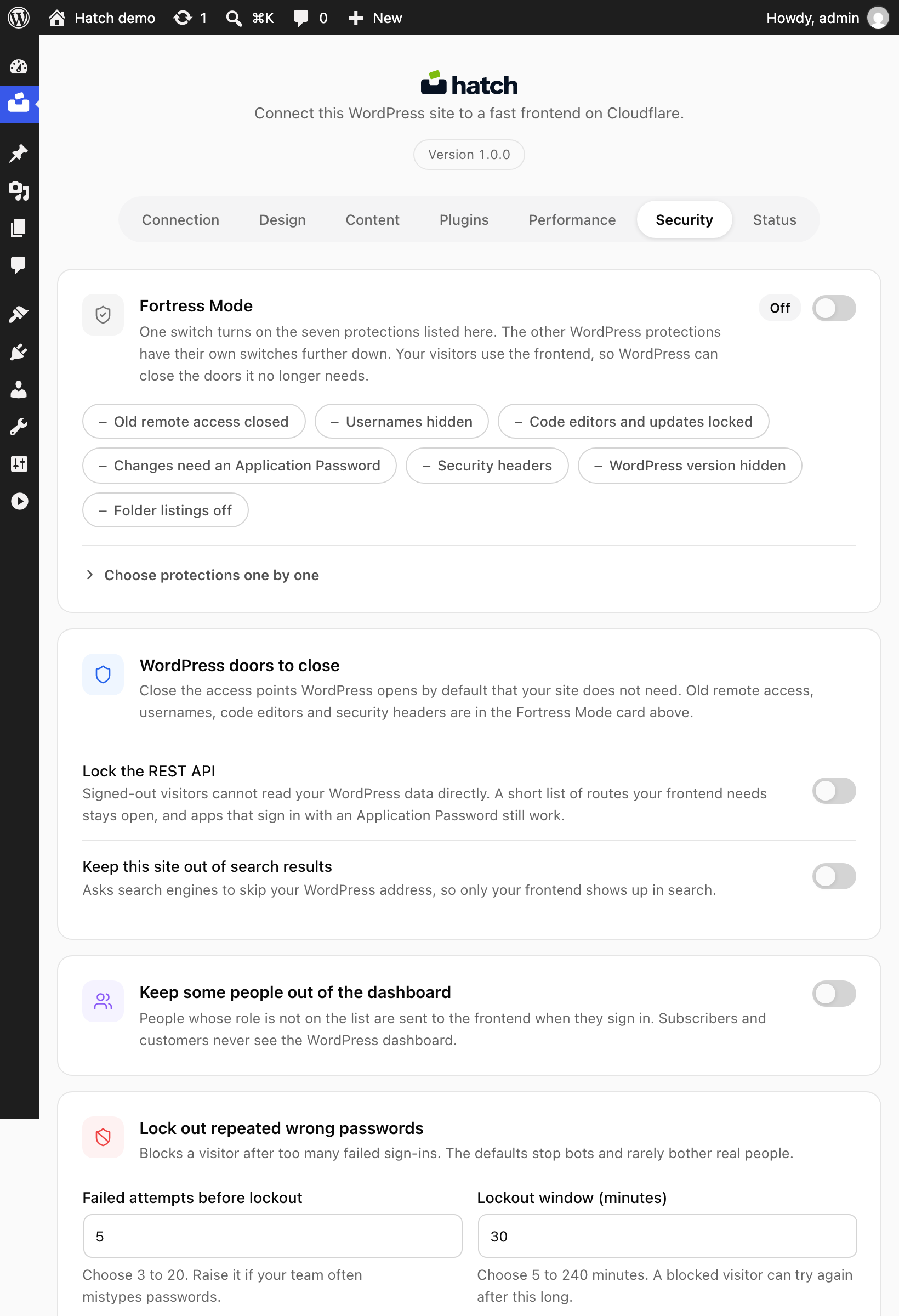
Fortress Mode
One switch that turns on every protection below. It shows each protection as a chip, such as Old remote access closed, Usernames hidden, Code editors and updates locked, Changes need an Application Password, Security headers, WordPress version hidden and Folder listings off. You can instead choose protections one by one.
WordPress doors to close
- Lock the REST API. Signed-out visitors cannot read WordPress data directly. A short list of routes your frontend needs stays open, and apps that sign in with an Application Password still work.
- Close the old remote access (XML-RPC). Attackers often use it to try many passwords in one request. Most sites do not need it.
- Hide usernames from signed-out visitors.
- Keep this site out of search results. Asks search engines to skip your WordPress address so only the frontend shows up.
Other protections
- Keep some people out of the dashboard. Roles not on your list are sent to the frontend when they sign in.
- Lock out repeated wrong passwords. Defaults are 5 failed attempts and a 30-minute window. You can choose 3 to 20 attempts and a 5 to 240 minute window.
- Lock the code editors. Turns off the theme and plugin editors and filters raw script code out of posts.
- Security headers. Adds browser safety instructions on WordPress pages. On Apache it also stops program files in uploads from running, using a marked block in
uploads/.htaccessthat is removed on uninstall. - Remind admins to use two-factor sign-in. Needs a two-factor plugin first.
- Turnstile on sign-in and comments. See the Turnstile guide.
Application Password
When you deploy, Hatch uses the Application Password you supply so the frontend can read the site. To remove it right now, use your profile page. The frontend stops working until you deploy again.
Remove all data on uninstall
Normally deleting the plugin keeps your settings so a reinstall picks up where you left off. Credentials, such as the saved Cloudflare token and the frontend’s stored password, are always erased when you delete the plugin. Turn this switch on to erase every other Hatch setting as well, including the form submissions table. This cannot be undone.
If something breaks after a change
Turn the last switch off and reload. If the frontend cannot read content after you lock the data feed, check the REST troubleshooting guide.