
Hatch Application Password or Login Fails
Fix Hatch deploys that reject the frontend account or Application Password, and frontend sign-ins that fail, using the rules Hatch actually enforces.
Last updated October 28, 2026
By the end of this guide you will know why Hatch rejects a frontend account or Application Password, and how to fix visitor sign-ins that fail on the frontend.
How the frontend account works
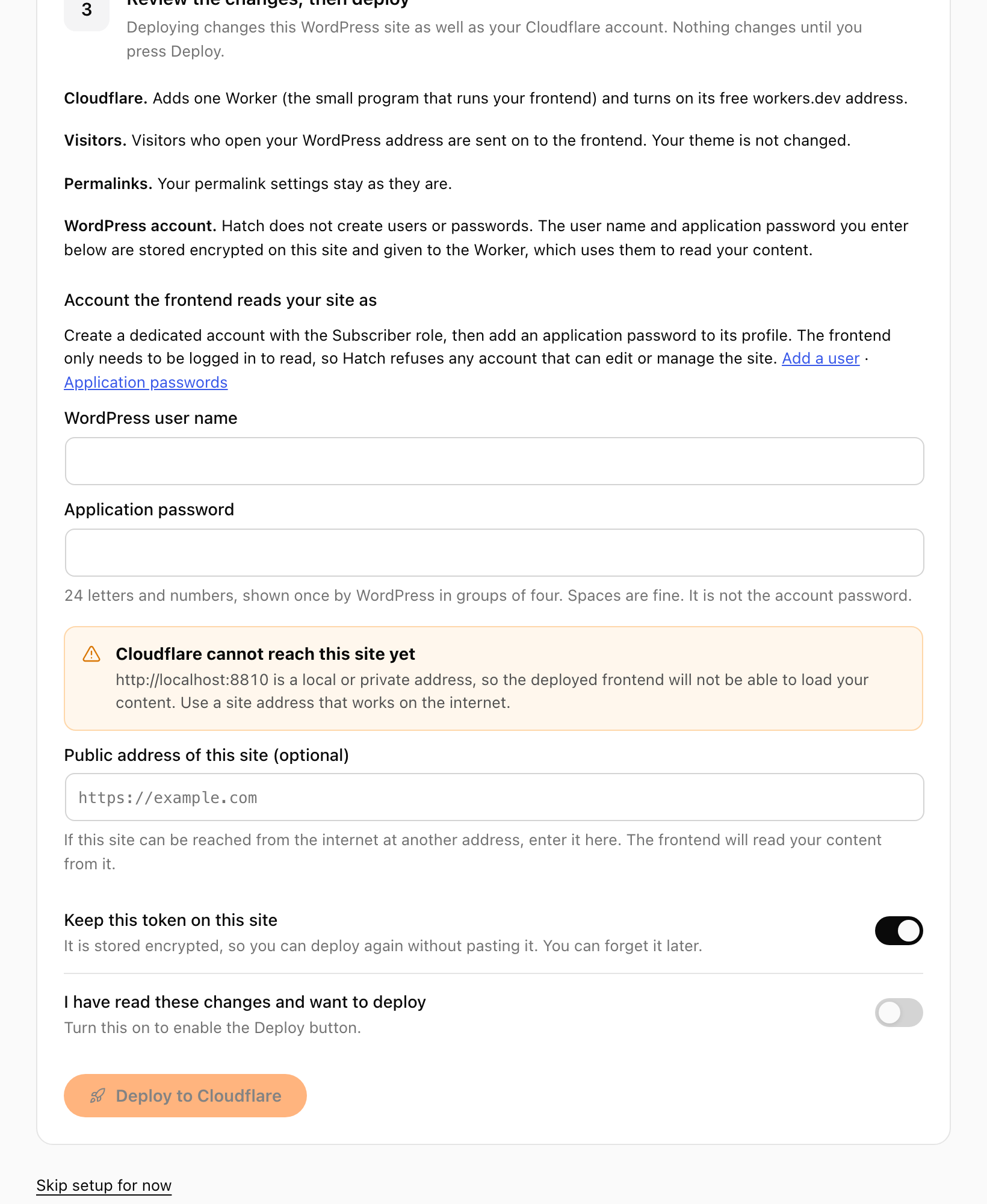
Hatch never creates users or Application Passwords. The deploy asks for the user name and Application Password of a low-privilege account (Subscriber) that you create. Hatch refuses accounts that can edit other people’s posts or manage users, plugins or the site, and stores only the user name and an encrypted copy of the password.
Fix a rejected account
- Go to Users, Add New and create a user with the Subscriber role. Do not use an administrator or editor.
- Open that user’s profile and, under Application Passwords, create a new one. Copy it straight away.
- Enter the user name (not the email) and the Application Password in Hatch’s Connection tab or the setup wizard.
- Deploy again.
Application Passwords section is missing
WordPress shows Application Passwords only on HTTPS sites, and a security plugin can turn them off. Use HTTPS and check your security plugin. Run wp hatch diagnose to see the preflight checks.
Visitor sign-in fails on the frontend
- Frontend accounts is off. Sign-in routes do not exist until you switch it on in the Content tab.
- Staff account. Administrators and other staff get no frontend session; they sign in at wp-admin.
- Registration refused. Sign-up works only when Anyone can register is on.
- Login limit. Sign-in uses WordPress authentication, so login-limit and security plugins can block repeated attempts.
After you disconnect
Disconnect forgets the stored password but does not revoke it. Revoke it in the user’s profile.