
Reading experience: table of contents, progress bar and share buttons
Turn on the table of contents, reading progress bar, share buttons, reading time, breadcrumbs, author bio and related posts on your Hatch Astro frontend.
Last updated October 29, 2026
By the end of this guide you will have chosen which reading features your Hatch frontend shows on posts, such as the table of contents, reading progress bar, share buttons, reading time and related posts, and how each one looks.
The reading features
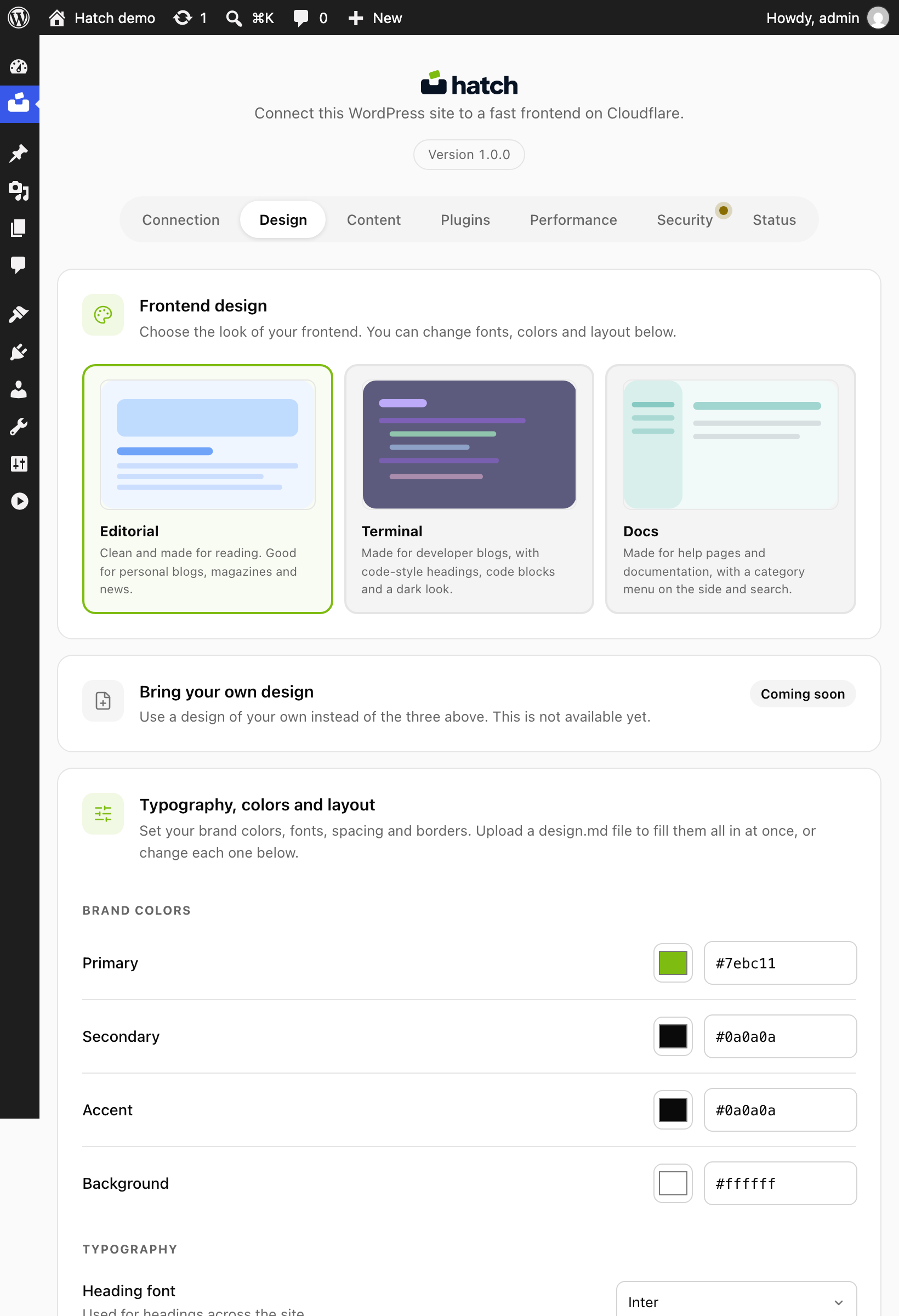
Each of these can be switched on or off on the Design tab of the Hatch screen. In a fresh install they are on, except the “Built by Hatch” credit, which is off.
- Progress bar: a bar that fills as the reader scrolls.
- Table of contents sidebar: a list of the post’s headings.
- Sticky share: share buttons that stay in view.
- Breadcrumb: the path from home to the post.
- Reading time and last updated date.
- Next and previous post links.
- Related posts and author bio.
- Category tabs on the blog index.
Set up the table of contents
- Open Hatch, then the Design tab.
- Make sure the table of contents is on.
- Choose which headings it lists. The default is H2 and H3.
- Change its label if you like. The default is “On this page”.
- Optionally turn on heading anchors so each heading gets a link readers can copy. They are off by default.
Use real Heading blocks in your posts. The table of contents is built from them.
Set up the progress bar
- Turn on the progress bar.
- Choose its position. The default is the top of the page.
- Choose its colour. The default uses your primary brand colour.
Choose share buttons
Pick which networks appear. By default X, LinkedIn, WhatsApp and copy link are on, while Facebook, Reddit and email are off. You can also choose where the buttons sit; the default is inline with the post.
Dates, reading time and authors
- Date format: the default is the long format.
- Reading time label: the default reads as minutes, for example “5 min read”.
- Breadcrumb separator: the default is a slash.
- Author avatar shape: the default is a circle.
Related posts
Choose how many related posts show under each article (the default is 3) and where they come from. The default source is the post’s category, so posts in the same category are suggested.
Animation
Page transitions are on by default. Hatch also has a setting to respect the visitor’s reduced-motion preference, which is on by default; leave it on so readers who turn motion off in their system are not shown animations.
Check the result
- Save the Design tab.
- Open a long post with several headings on your frontend.
- Scroll to check the progress bar and table of contents, then try a share button.