
The deploy fails with a Cloudflare API error
Fix a failing Hatch deploy to Cloudflare: missing token permissions, expired token, a rejected frontend account, or a site Cloudflare cannot reach.
Last updated November 3, 2026
If Check token or Deploy fails, the cause is almost always the token, the frontend account, or the site address. Work through these in order.
1. The token is missing a permission
Account, Workers Scripts, Edit is required. Without it the deploy cannot upload the Worker. Create a new token with the permissions in Create the Cloudflare API token Hatch needs. If Hatch cannot list your accounts, add Account, Account Settings, Read. For a custom domain you also need Zone, Zone, Read and Zone, Workers Routes, Edit.
2. The token expired, was revoked or is scoped to the wrong account
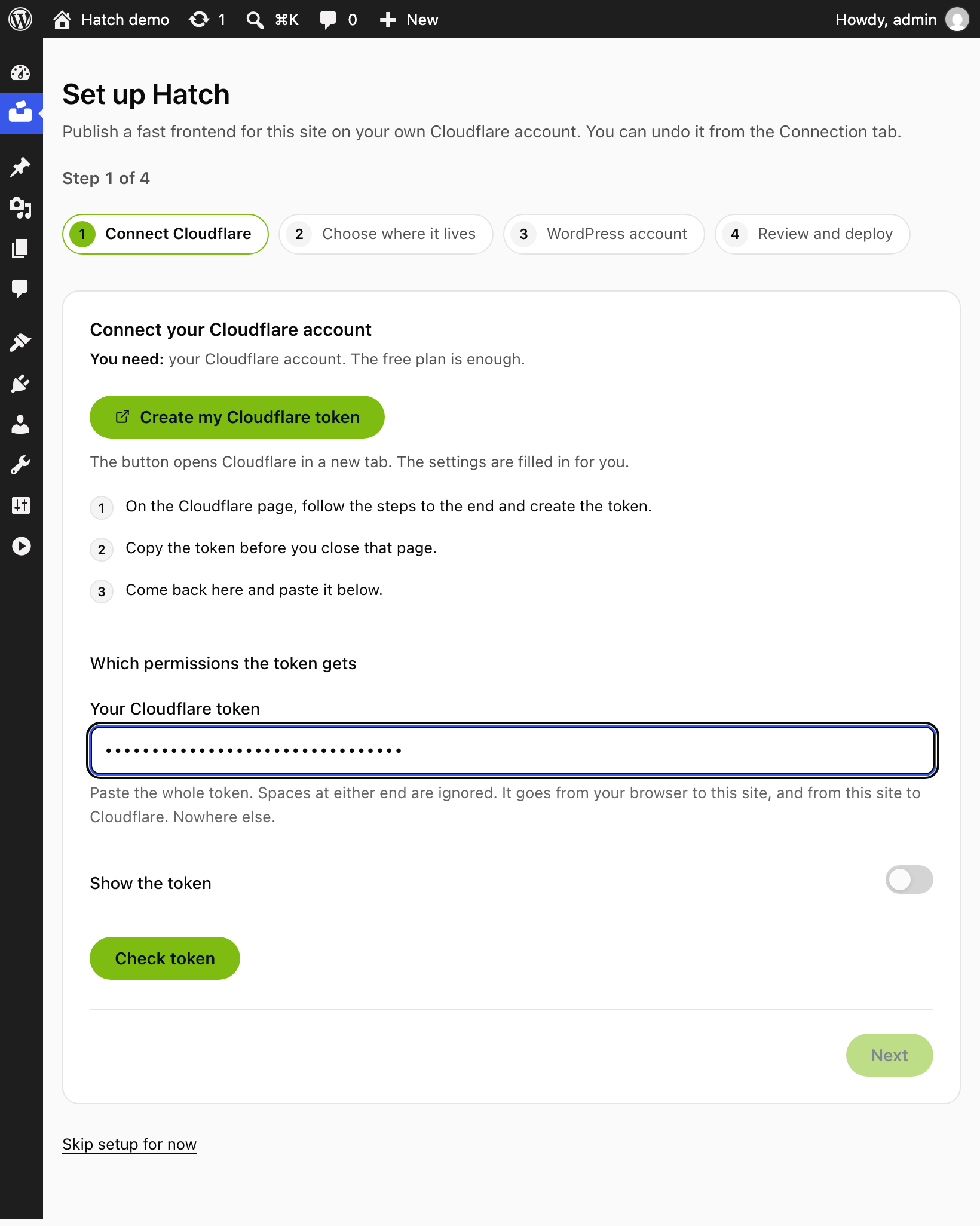
Open Cloudflare, My Profile, API Tokens and check the token’s status, expiry and Account Resources. Choose Use a different token in the setup guide to paste a new one.
The setup guide shows one of two messages for these causes:
- If the token is wrong, cut off or has a character missing: Cloudflare does not recognise this token. Copy the whole token again, with nothing missing at the start or the end.
- If the token was revoked or has expired: Cloudflare rejected the API token. Check that it was copied in full and has not been revoked or expired.
In both cases, create a new token and paste it in full.
If the token is real but missing a permission, the setup guide stops with one of these messages:
- When you deploy and the token cannot publish Workers: The API token does not have permission for this step. Cloudflare said: Authentication error. Add Account, Workers Scripts, Edit to the token (see step 1), or create a new token with it. Check token may still say Cloudflare accepted the token; the missing permission can show only when you deploy.
- When the token cannot read your account: Hatch could not find a Cloudflare account for this token. Add the “Account Settings Read” permission to the token, or enter your account ID.
3. The frontend account is refused
Hatch refuses any WordPress account that can edit other people’s posts or manage users, plugins or the site, both when you enter it and every time it signs in. Create a user with the Subscriber role, add an Application Password to that profile, and enter its user name and that password (24 letters and numbers, not the account password).
4. Cloudflare cannot reach your site
If the review step warns that your address is local or private, such as http://localhost:8810, the deployed frontend cannot load your content. Use a site address that works on the internet, or enter the public address in Public address of this site.
5. Plain permalinks
With plain permalinks the frontend cannot read your posts. See The REST API returns 404.
Still stuck
Open Hatch, Status and copy the setup checks, then contact support with that text. Never send your token.