
How to check Hatch Connect is working
Use the Status tab, the setup checks and one REST request to confirm Hatch Connect is running and your frontend is answering.
Last updated November 4, 2026
Three simple checks tell you whether Hatch is healthy: the Connection tab, the Status tab, and the REST features endpoint.
Check 1: the Connection tab
Open Hatch, Connection. Before a deploy it says Not deployed yet. After a deploy it shows the live address and when the frontend last refreshed. The Setup checks card shows a score such as 10 / 11 and a Show checks button listing anything that needs attention.

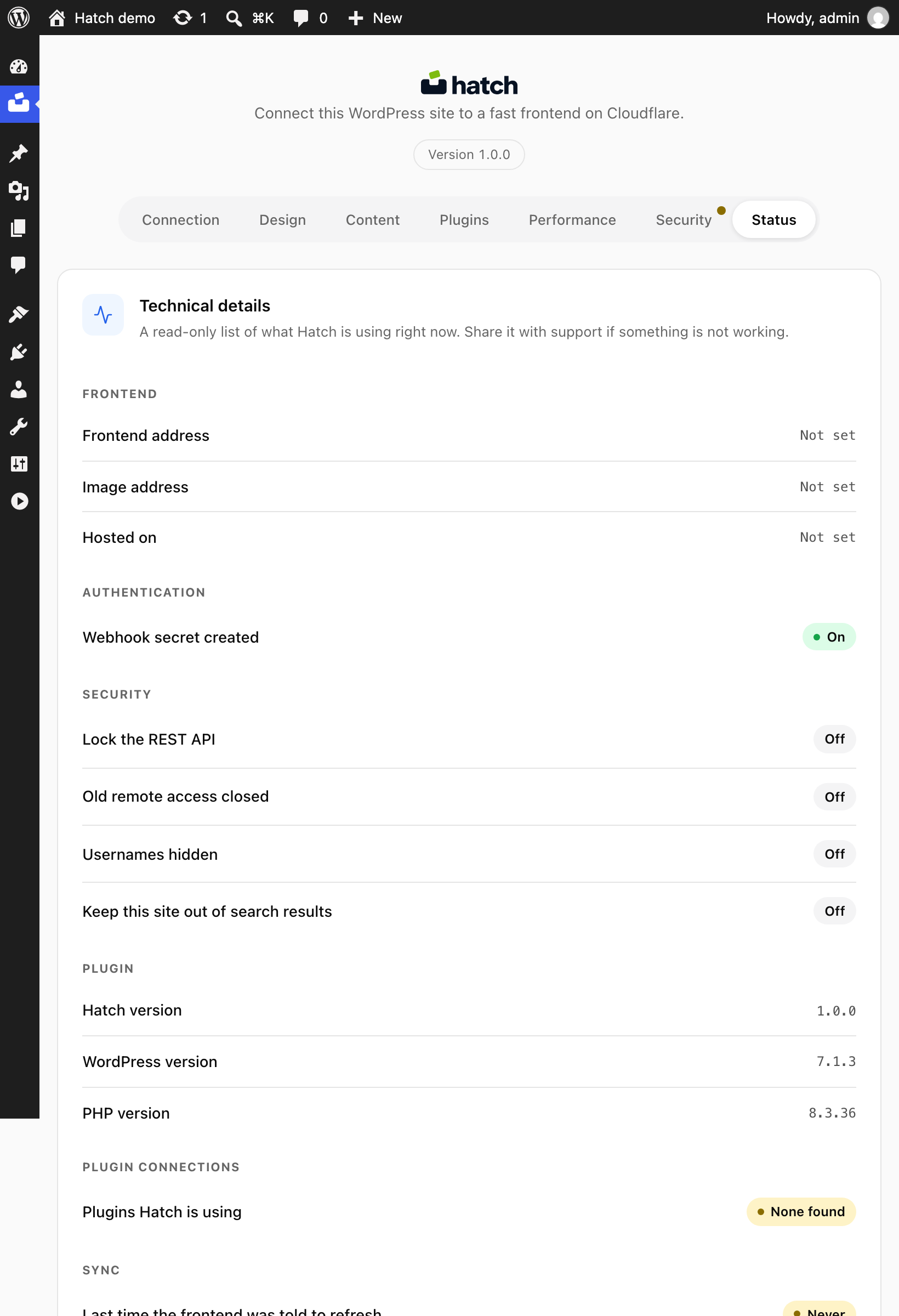
Check 2: the Status tab
The Status tab shows whether your frontend is answering, when it last refreshed and what needs attention. Hatch also runs a check of your own frontend address every 15 minutes once you have saved one.
Check 3: the REST features endpoint
Open this address in a browser, replacing the domain with yours:
https://your-site.com/wp-json/hatch/v1/featuresYou should see JSON describing the current design, integrations and features. If you get a 404 instead, read The REST API returns 404.

What to do next
Explore how the frontend works or the endpoint reference.